Bring soft facial details into focus
A soft close-up can distract from a useful interview or introduction. Try the AI face enhancer on the scene you want to publish, then decide whether the added definition suits the person on camera.
 Video2X
Bring soft faces into focus in your videos. Upload a clip to the AI face enhancer, check the credit cost, and compare the result before downloading.
MP4 or WebM recommended. One video, up to 10 minutes.
3 credits / second
Duration rounds up to whole seconds, with a 3-second minimum charge. The final cost uses the server-read duration.
See the difference in facial detail
Demo video. Upload a video to see your own result.
An AI face enhancer improves facial clarity in an existing video. Use it for a soft close-up or an older recording without shooting the scene again.
Face enhancement concentrates on the person in your footage. It can be useful when the expression or moment works, but the face lacks definition.
A face swap replaces the person shown. This tool instead starts with the face already present in your video; it has no face-swap or facial-reshaping controls.
Reconstructed detail is an interpretation, not a precise record of missing information. Very small faces and heavy blur can limit what an AI face enhancer can recover.
Improve facial clarity, assess movement across a scene, and try older footage with one video workflow. Preview locally and see the estimated credit cost before processing.
A soft close-up can distract from a useful interview or introduction. Try the AI face enhancer on the scene you want to publish, then decide whether the added definition suits the person on camera.
People turn, speak, and move through a recording. Watch the processed scene in motion rather than choosing a result from one paused frame. This matters when faces appear at different distances or move in and out of focus.
Digitized family footage can contain moments you cannot record again. Select a short scene from the archive to evaluate first. Face enhancement addresses facial clarity; it does not repair missing frames or every kind of damage in an old recording.
Demonstration footage shown for visual reference.
Selecting a video creates a local preview and reads its duration. The file uploads when you choose Enhance Video after signing in, so you can inspect the selection before submitting it.
The AI face enhancer shows an estimate beside your available credit balance. If the balance is insufficient, the page asks you to add credits before it creates a processing task.
Use a clearer face in an introduction, creator edit, event clip, or family archive. Choose a scene with a practical destination for the finished video.
Improve an introduction for a profile, portfolio, or team page. Work from the original take and finish with a separate downloadable version for your chosen platform.
Process a close-up for an interview, reel, or announcement. The AI face enhancer handles the submitted clip; titles, captions, and the rest of your edit remain separate steps.
Choose a scene from a gathering, performance, or celebration. Submit one video at a time, whether you want to use a short highlight or a longer segment.
Work on a manageable scene from a digitized recording. A video can be up to 10 minutes long; divide a longer recording into clips before submitting it.
For people improving existing footage: creators preparing an edit, videographers revisiting a take, and families organizing recordings they want to use again.
Refresh a personal or professional introduction without immediately recording another take. Select the video and preview it locally before deciding to start a paid enhancement.
Add face enhancement as one step in an existing editing workflow. Download the completed result and use it in your editor for the final sequence, graphics, or captions.
Evaluate a usable performance whose focus is slightly soft. Begin with a short representative segment, so you can decide whether processing the longer take is worthwhile.
Process selected scenes rather than an entire archive in one task. The credit estimate helps you budget for each clip, and the result downloads as a separate file.
Choose an AI face enhancer when a face looks soft but the scene works. Use general video enhancement when the background and wider frame need attention too.
| Your main problem | Where to start | What to check |
|---|---|---|
| The face looks soft, but the rest of the scene works | Face-focused enhancement | Eyes, hair, skin texture, and likeness |
| The whole scene lacks clarity | A general video upscaler | The full frame, movement, and detail |
| An older recording has missing or damaged frames | Dedicated video restoration | Whole-clip damage beyond the facial area |
| You want different facial proportions | A tool with explicit retouching controls | Whether the change is intentional |
Choose the editing step that matches the problem. An AI face enhancer targets facial clarity; general video enhancement addresses the wider frame. Neither label means that missing footage or an identity change will be corrected automatically.
This page provides one face-enhancement workflow. It does not offer Standard or Pro model selection, a resolution selector, or manual facial-retouching controls.
Choose a video, check its duration and estimated cost, then sign in to enhance it. Keep the page open while the task runs and download the completed result.
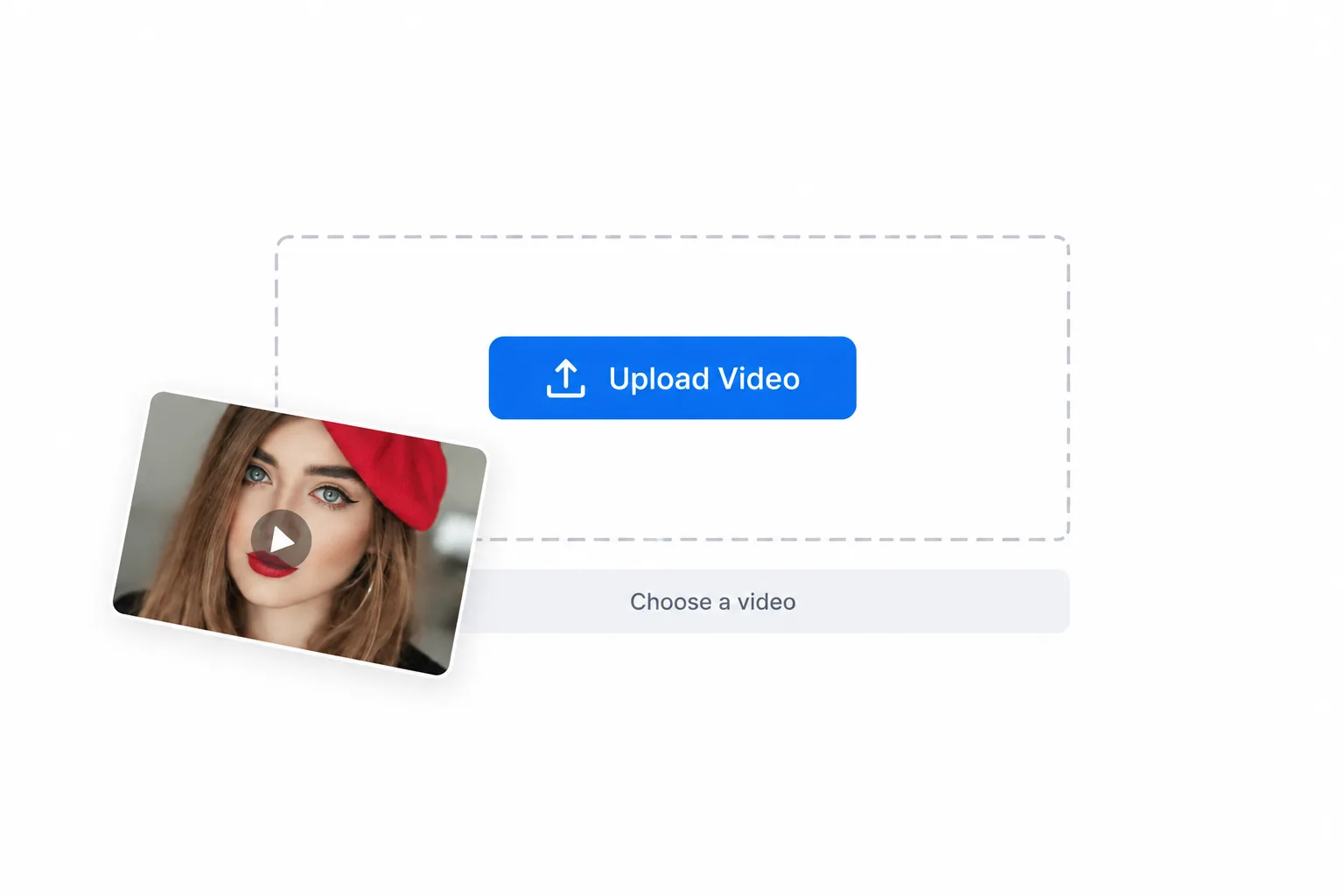
Browse for a clip or drop it into the upload area. MP4 and WebM are recommended for browser preview. The page checks the duration before displaying a cost estimate; choosing a file alone does not upload it.
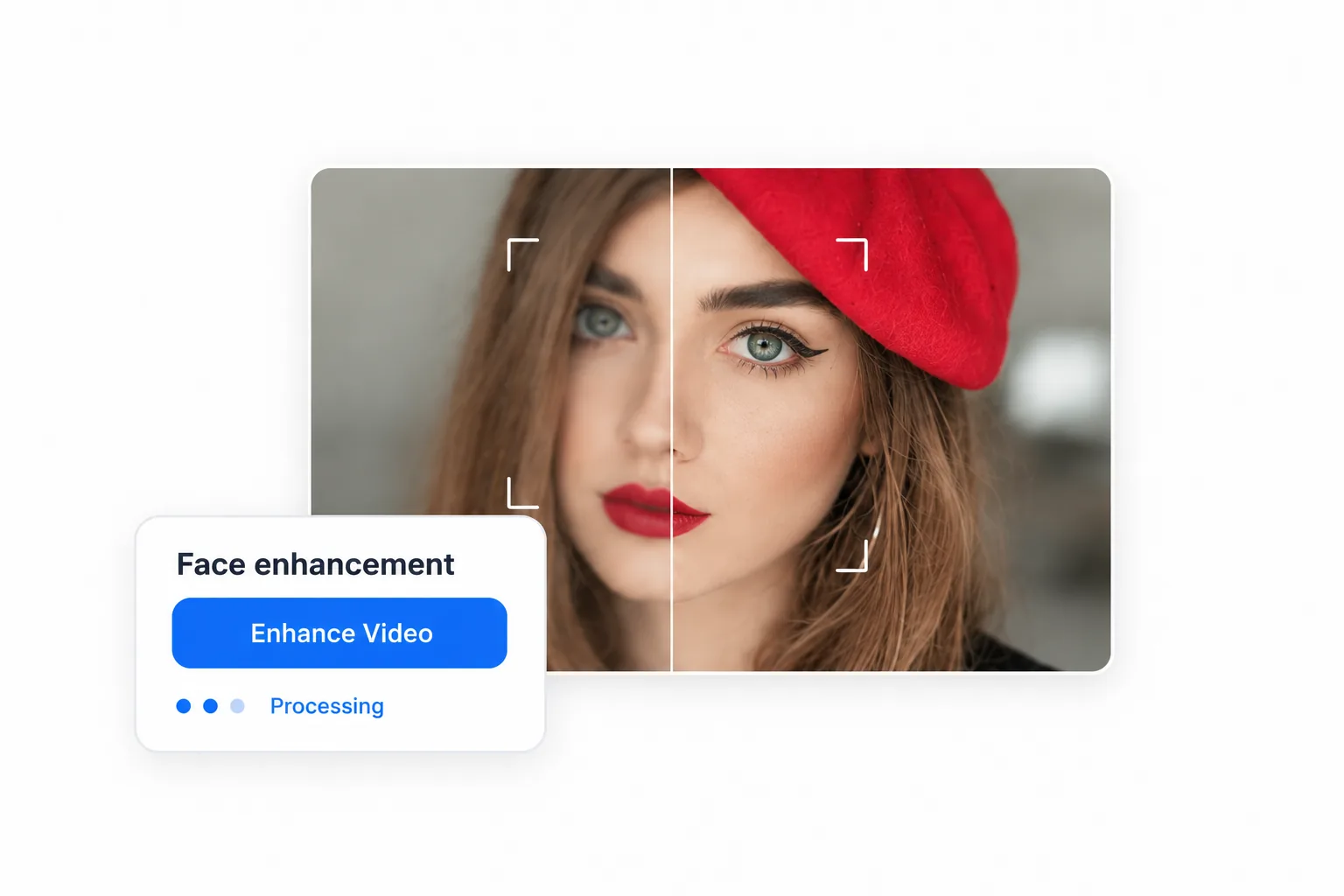
Sign in, check your balance, and select Enhance Video. The AI face enhancer uploads the file and starts one task. If a status check is interrupted, use Check task status to query that same task without submitting another enhancement.
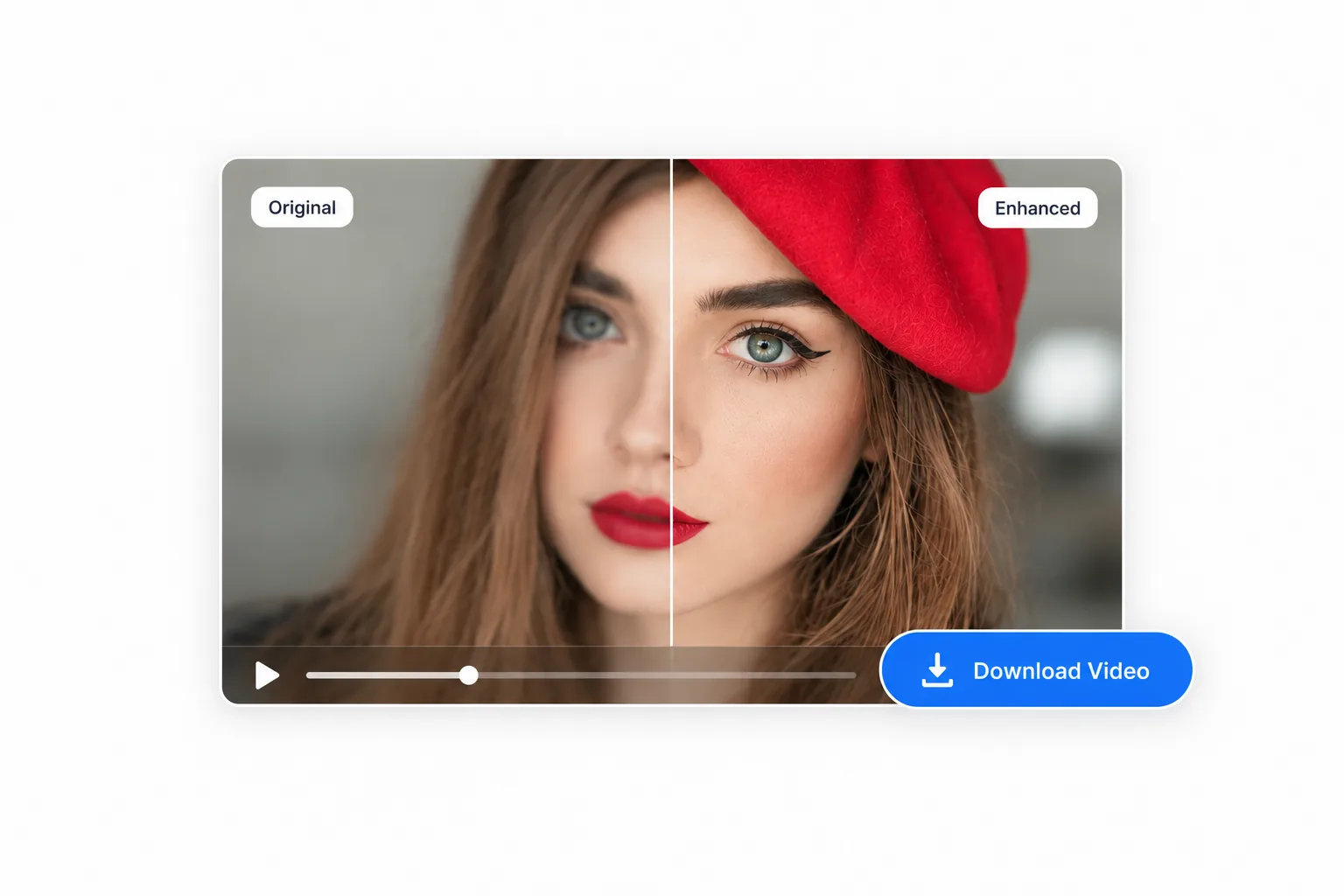
When processing completes, the result appears in the preview area. Open Compare with your original to see the source, then choose Download Video to save the returned file. There is no output-resolution or audio-setting step on this page.
AI-generated workflow illustrations. Use the tool above to upload and process your own video.
The AI face enhancer costs 3 credits per second, rounded up to whole seconds with a 3-second minimum charge. Review your estimated cost before processing.
Your cost estimate uses the duration read by the browser. If the server measures a different duration, its measured duration determines the final charge. A 2-second clip costs 9 credits under the minimum charge; a 10-second video costs 30 credits.
The packs below add credits to your shared Video2X balance. An AI face enhancer task uses that balance at its own rate. Available free account credits can cover processing costs; buying a pack is separate from choosing the duration of a particular task.
Check input compatibility, credit charges, download behavior, and what happens to your selection before starting a video enhancement.
The upload field accepts MP4, MOV, WebM, MKV, and AVI files, one video at a time, up to 10 minutes long. MP4 or WebM is recommended because browser playback depends on how a file is encoded. If your browser cannot read the duration or show a preview, try an MP4 or WebM version before starting the AI face enhancer.
Processing costs 3 credits per second. Duration rounds up to whole seconds, with a 3-second minimum charge: a 2-second clip costs 9 credits and a 10-second clip costs 30. The page shows an estimate before submission. You need to sign in and have enough credits to start; available free account credits can contribute to the charge.
This page has no output-resolution, frame-rate, or audio controls. Download Video saves the file returned after processing. Check its properties and sound in your video player before using it in an edit. The on-page preview plays muted; that playback setting does not establish whether the downloaded file contains an audio track.
Choosing a file creates a local preview. Upload begins when you select Enhance Video after signing in. Removing the selection clears that local preview; it does not delete a file already uploaded to the server. This page does not specify a storage or automatic-deletion period. Read the Privacy Policy before submitting personal footage.
Use Check task status to continue checking the existing task. That action does not submit another enhancement. Keep this page open while processing: the current screen does not restore a task after a page refresh. If the service reports a confirmed processing failure, the page displays that failure separately from a connection problem.
No. Heavy blur, a very small face, or missing detail can prevent an accurate result. An AI face enhancer may infer features rather than recover them exactly. If the person looks unfamiliar, do not treat the result as a faithful record of their appearance.
Choose a clip you want to keep, try the AI face enhancer, and see whether clearer facial details make it ready to share.